Tuesday, November 21, 2006

MS Word - Adjusting a Form Template

Just got back to having computer access and received a call from my wife. A form I had made up for her, using Microsoft Word 2003, needed to be adjusted for some new product and she had ten orders to type up and run on the dot matrix printer with the new information.


The problem was that she nows very little about how to use Microsoft Word and needed it down right away to keep from having to do everything by hand.


Luckily, I was able to walk her through sending me a copy of the DOT (Word Document Template (Microsoft)) file, via email. Once I saved that DOT file to my hard drive, I was able to open it, adjust it and email it back to her.


To make the adjustments in MS Word 2003, I did the following:


  • Right clicked on the DOT file.

  • Selected Open from the drop down menu. (If you just double click a DOT file to open it, you will get a new blank document instead of opening the DOT itself.)

  • Made the Forms Toolbar visible:


    • View on the MS Word menu bar

    • Select Toolbars

    • Click on Forms


  • Clicked on the Protect Forms icon, it looks like a little padlock, to unlock the form.

  • Replaced three text items with Text Form Fields, with the same formatting as the replaced text; also changed text in another area, but straight text not a Text Form Field.

  • Clicked on the Protect Forms icon again to lock the form again.

  • Hid the Forms Toolbar again.


    • View on the MS Word menu bar

    • Select Toolbars

    • Click on Forms


  • Saved the DOT file with a new name, reflecting today's date and the new function.


Once the form was adjusted, I emailed her the new DOT file and walked her through how to save it in a folder in My Documents containing forms of the same type and then walked her through creating a shortcut for this one to the desktop.


The whole process took about a half hour and saved a lot of work on her part. Now she just needs to double click on the shortcut item, fill in the information that changes, print the multi-part form on the dot matrix printer, sign it and move on to the next order of business.


She has some other forms, that are not multi-part, but those I have done for her in PDF (Acrobat Portable Document Format) and have to do those differently as you must have the complete Acrobat application to create or adjust them.


If you have special forms or are interested in forms, leave a comment and let me know how you handle problems.


As Thursday is Thanksgiving Day, there will be no posting. I will be spending time with my family, as we all should, and will post Friday this week instead.


Have a great Thanksgiving!!

Tuesday, November 14, 2006

XP - My Computer Speed Up

Our office has been moved to a new
building, and in the process of getting all the computers setup for
the network and various printers, co-workers noticed that when I open
up the My Computer folder on my machine it loads very quickly
compared to theirs.


Once our IT people had left, after
getting everybody connected to the appropriate network modules and
printers, I showed those interested how I had gotten mine to speed
up; here is how I did it.


  • Open Windows Explorer.


  • Select My Computer.


  • Click on Tools, in the menu bar.


  • Select Folder Options from the
    drop down menu.


  • Select the View tab.


  • Uncheck the box in front of
    “Automatically search for network folders and printers”.


  • Click OK.


Now the My Computer folders should
display more quickly.


*************************************


Note:


Due to the move and a similar operation
at my home base, this will be the final posting to this blog, until
Tuesday, November 21, 2006. I will be unable to do any updates until
then.


Please use the comments to leave me any
suggestions or questions, you might have and I will get back to
posting as soon as possible.

Thursday, November 09, 2006

Firefox Add On - Foxmarks Bookmark Synchronizer 0.84

I use Firefox 2.0 on my desktop and the BPCA laptop, as well as Firefox Portable 1.5.0.8 on a USB Drive. Getting my bookmarks and RSS feeds synchronized manually was very tedious and error prone.


When I upgraded the other day to 2.0, one of the recommended add ons was the Foxmarks Bookmark Synchronizer, so I thought OK give it a try.


I made back ups of the various profiles, as I always do in case of a foul up and then installed the Foxmarks extension, available at https://addons.mozilla.org/firefox/2410/, and ran the setup on each of the computers and the USB drive. Now I have the same bookmarks on each of my devices.


Part of the setup includes getting a free account at http://foxmarks.com/, where all your bookmarks are stored. Also, you can access your bookmarks from that site, using the user name and password created during setup, from anywhere, yes even using IE provided Javascript is enabled.


More in depth information is available through the Foxmarks FAQ: http://www.foxcloud.com/wiki/Foxmarks:_Frequently_Asked_Questions#Help.21_Something_strange_happened_to_my_bookmarks._What_do_I_do.3F.


I find this to be a very useful Firefox add on, making my collection of bookmarks available no matter where I am accessing the Internet from.


What are your favorite Firefox add ons?

Tuesday, November 07, 2006

Open Source - Firefox 2.0

Well I finally downloaded Firefox 2.0 and installed it.


Just for my own reference, I backed up my whole PC and then just doubled clicked the Firefox Setup 2.0.exe file and ran the installer. I did not remove my 1.5.0.7 version or any of its components first.


The installer ran in less than a minute and when Firefox started up I found that everything worked must faster, and that my installed extensions (now called add ons) worked with no problems.


In regards to add ons, I particularly like that Firefox now restarts itself, with my permission of course, and then immediately I have access to the add on. This is much simpler and quicker than the previous versions.


All of my bookmarks and prior settings seem to have come out OK. If upon further use, any problems turn up, I will let you know about them through this blog.


All in all, I am quite impressed with the improvements I have seen so far.


I can not compare this to the new Internet Explorer 7, as I have not yet installed or tried it. I very seldom, need to use IE anymore for anything and do not even have it at work yet.


For right now, I think that I will stay with my current Firefox Portable 1.5.0.7, as 2.0 is only in release candidate stages at this time, but when Firefox Portable 2.0 is put out as a full version I intend to switch over to that also.


Let me know about your experiences with Firefox 2.0, good or bad, by leaving a comment to this post.

Thursday, November 02, 2006

Interesting Blog - Daily Cup of Tech

I ran across this interesting blog recently and am adding to my Blog Roll.


Daily Cup of Tech


This blog by Tim Fehlman, contains a lot of useful technical information. What really caught my interest was his 31OCT06 posting Build a USB Drive Mail System, in which he gives detailed instructions of how to set up a totally portable email system on a USB drive, using free software.


I have been using Thunderbird Portable and earlier versions for quite some time now, but have a 256MB USB drive that I am going to set up this way, so that all I have to do is plug it in and take care of my email when away from home.


This fits in very nicely with the presentations "5 Things You Can Do With a Portable USB Drive" and "Portable Applications" given at the 17OCT06 BPCA meeting.


Tim is a self professed "USB drive nut" and many of his postings are regarding USB drives.


Check it out for yourself, and let me know how you like it.

Tuesday, October 31, 2006

Freeware - Foxit Reader 2.0

I ended up with a problem while I was away. I did not take my laptop, only my 1 GB USB Drive loaded with portable versions of Firefox, Thunderbird and OpenOffice.org.


The problem was that the computers available in the business center wher I was staying did not have Adobe Reader, in any version, installed. I was therefore unable to open any PDF files.


I went looking around and found Foxit Reader 2.0 for Windows from Foxit Software http://www.foxitsoftware.com/pdf/reader_2/down_reader.htm.


I downloaded it to my USB drive, double clicked on the FoxitReader.exe file and was able to access PDF files to my hearts content and even fill in interactive forms, without having to install anything. On top of that it is much faster loading than Adobe Reader, in my experience.


Note: The paid version with enhanced capabilities does have an installer and writes to the registry, at least that is my understanding.


The free version does not have all the capabilities of Adobe Reader, but for the price and my uses, it is very adequate. I must say that I also have the full Adobe Acrobat 7 application on my main computer, with which I can generate PDFs and manipulate them, as well as just read or fill in interactive PDFs.


If I keep having no problems opening and reading PDF files in the next few weeks, Foxit Reader will become my default PDF reader.


Give this a try and you might be using it as your default PDF reader as well.

Thursday, October 19, 2006

Miscellaneous - Posting Delay

There will be no new postings until October 31, 2006.


Unfortunately, I will not have access to update this blog, until that time.


The regular Tuesday and Thursday posting schedule, will resume October 31, 2006.


If you have any questions during this down period, please leave them as a comment to this posting, and I will respond as soon as possible, upon the return of access to updating this blog.


Happy computing!

Tuesday, October 17, 2006

Miscellaneous - USB and Portable Application Presentations

I have been preparing two presentations to be given this evening at the BPCA general meeting.


The first "5 Things You Can Do With a Portable USB Drive" is a revised version of that presented by Jerry Naditch of the Viscaya Computer Club. Thanks to Jerry for his permission to revise and use as needed. All editing and additional material done using OpenOffice.org Portable v2.0.3 components.


The second "Portable Applications" was completely written using OpenOffice.org Portable v2.0.3.


Both will be available through the BPCA website, after publication of the November 2006, C:\BPCA News, in both OpenOffice.org Impress and Microsoft PowerPoint formats.


In the course of my research, for the "Portable Applications" presentation, I became aware of a portable version of Scribus v1.3.3.4, an open source desktop publishing application. I have installed it on one of my USB thumb drives, and intend to check it out for suitability of use in publishing further editions of C\BPCA News and other computer user group publications. If this works out, it will be a much cheaper alternative to the retail desktop publishing such groups must purchase.

If anyone has used the standard Scribus v1.3.3.4 or the portable version, for such a purpose, I would like to hear from you about your experiences or any suggestions.

Thursday, October 12, 2006

Gmail - Plus Addressing

I like that Gmail allows me to use "Plus Addressing", because it makes it easier for me to organize specific incoming email.


According to the Wikipedia Gmail entry, Plus-addressing section, as accessed 12OCT06 :


Gmail also supports "plus-addressing" of e-mails. Messages can be sent to addresses in the form: username+extratext@gmail.com where extratext can be any string. Plus-addressing allows users to sign up for different services with different aliases and then easily filter all e-mails from those services, however, a significant number of services do not support email addresses containing plus signs.

One I use all the time is gmailaddress+bu@gmail.com, the first portion is not my real Gmail address of course. This is for when I am sending myself a backup of information done at work to my Gmail account, and I have a filter set up to automatically label any emails to gmailaddress+bu@gmail.com with a specific label. More about Gmail filters in a post to follow.


I also use a plus addressed Gmail to sign up for things online, then if I have a problem or start receiving a lot of spam I can just set a filter to automatically delete any thing coming in to that address.


In effect plus addressing gives you unlimited disposable email addresses, at least I have not found anywhere that would not accept one.


I am sure there are some more creative ways to use plus addressing, and would like to hear from my readers about their different uses for this. Leave a comment on this or any post to let me know.

Tuesday, October 10, 2006

Miscellaneous - Rotate Pages in Adobe Reader

Have you ever received a PDF file, only to discover once you open it the pages are upside down?


This happens to me quite frequently at work, when multiple pages are scanned to PDF using a sheet feeder. If the paper is not in good condition, due to stapling or whatever, the scan is done from bottom to top and unless the full Adobe Acrobat is used can not be rotated before sending.


While this is aggravating, if you want to read the document directly from the computer, there is a way to do this without turning you monitor upside down or standing on your head.


The following directions apply to Adobe Reader v7.0.8, but should be similar, if not the same, in earlier versions:


To rotate left click on the Rotate View button twice.Rotate View Button Image


If the Rotate View button is not showing in your Reader window, select View on the menu bar, then Toolbars and make sure Rotate View is checked. (See image below.)


Rotate View Button Activation Image

If you are going to print out the file to read it, rotating is not necessary.

Thursday, October 05, 2006

Portable Apps - Firefox and Firefox Portable Settings Part 3

This is a follow up of my 31AUG06
Portable Apps - Firefox and Firefox Portable Settings Part 1
and
07SEP06
Portable Apps – Firefox and Firefox Portable Settings Part 2

postings, in which items in the General, Privacy and Content settings
were discussed. Part 4 will be concerned with the Advanced settings,
and will be the final posting regarding the Firefox settings. The
version of Firefox being used at the time of this entry is 1.5.0.7.


Tabs


The Tabs tab, appropriately is where what the tabs do or don't do,
when using the tabbed browsing feature in Firefox. The following is a
table, showing the different options and my preferences, which are
the same whether using the standard or portable version of Firefox.


Firefox and Portable Firefox Tabs Tab


Option


Secondary


Comments


My Preferences


Open links from other applications in:


Radio Buttons:

a new window

a new tab
in the most recent window

the most recent
window


A new tab in the most recent window.


Force links that
open new windows to open in:


Radio Buttons:

the same tab/window
as the link

a new tab


A new tab.


Hide the tab bar
when only one web site is open


Check Box:

Checked: Hidden

Unchecked: Showing


Checked.


Select new tabs
opened from links


Check Box:

Checked: Selected

Unchecked: Not Selected


Unchecked.


Warn when closing multiple
tabs


Check Box:

Checked: Warned

Unchecked: Not Warned


Checked.

I am reminded that I have more than one tab open, so that I can
Bookmark what I want to get back to, in case I have not already
done so.


Downloads


The Downloads tab
contains controls for the handling of where the files are downloaded
and what can be done with them automatically. Downloading a file and
then finding it later is a problem for a lot of the users I know, so
I recommend that a specific folder be created and all downloads, of
whatever nature, be set to download to that folder. Personally that
is what I do and going even further, once my downloading is complete,
I set up sub-folders within that download folder to organize and make
them easier to locate months or years down the line.


Firefox and Portable Firefox Downloads Tab


Option


Secondary


Comments


My Preferences


Download Folder


Radio Buttons:

Ask me where to save
every file

Save all files to
this folder: (Offers a
Browse
button to select a folder in Windows Explorer


Desktop and Laptop –
I set to save all downloads to a folder named Downloads on my
partition, to make easier to find after download.

USB Drives – Ask where to save every time, as I don't know
what computer I will be using or what the USB drive letter will
be, usually have saved to the USB Drive for portability.


Show Download Manager
when a download begins


Check Box:

Checked: Shows

Unchecked: Does not Show


Checked.


Close the Download
Manager when all downloads are complete


Check Box:

Checked: Closes Download Manager upon completion of download
session.

Unchecked: Leaves Download Manager open until Firefox is closed.


Checked.


Download Actions
(Set to automatically download or open
files of certain types.)


View & Edit
Actions Button


Whatever the default for the extension is.


Change Action Options When downloading files.


Radio Buttons:

Open them with the
default application (Shows what the default option is)

Open them with this application: (Provides a Browse
button)

Save them on my
computer.

Use this Plugin


Whatever the default for the extension is.


If you have any
questions or ideas for a better way to set up the options, please
leave a comment with this post.

Tuesday, October 03, 2006

Freeware - tinySpell

This is a follow up to the September 21, 2006 Lifehacker, after which I have tried out the tinySpell "Download of the Day".


This little application has been a real help to me when using Notepad or NoteTab Light to draft my blog postings emails and drafts for newsletter articles.


There are two versions tinySpell and tinySpell+, the first being freeware and the second an enhanced version, which will remember the last error, let you added auto-replacements and lists of words to the dictionary, checks capitalization, ignores internet and email addresses, etc.


I have been using the freeware version.


I have turned off the beep notification, and just rely on the tinySpell icon in the system tray to turn yellow and catch my eye.


When the icon turns yellow, I just left click on it and it comes up with a list of suggested corrections, from which I can choose or be allowed to add the word in question to the tinySpell dictionary.


I have been impressed with this little application and recommend it to others as an option for those applications that do not have their on spell checking capabilities. Also, I have seen no conflicts with the spell checkers in Microsoft Word, Publisher and OpenOffice Writer.


The link for the version I have used and written about above is http://tinyspell.m6.net/. There are links to several reviews there as well.


Try it out for yourself and let me know what you think.


If you have some other helpful application and you think I should check it out, leave me a comment with all the particulars and maybe one day there will be a posting about it.

Thursday, September 28, 2006

Email - Show File Extensions For Safety

Set Windows to show file extensions to make it easier to determine attachment safety. By default Windows is set to hide file extensions and hackers have used this to hide the real extension of an attachment to look legitimate, as most users do not change the defaults.


An example of goodattachment.txt.exe would show as goodattachment.txt, unless Windows is set to show file extensions and, if opened would run the executable file with probable bad results.


Showing file extensions is a simple process:


  • Left click Start.

  • Left click Control Panel.

  • Double click Folder Options.

  • Select the View tab.

  • Un-check the "Hide extensions for known file types." box.

  • Click OK.

  • Close Control Panel.


Sowing file extensions is one of the first things I do when someone asks me to help them with a computer problem and I explain why they should keep this setting. Not only is this a good precaution for email, it helps me understand what the different files are in the folders on the computer that is having problems, as most leave the file extensions hidden and I can not then determine whether a particular file is a data file, an executable, a zip, etc.


Do yourself and your computer repair/consultant personnel a favor and set Windows to show file extensions.


If you know of any other reasons to show file extensions, please leave me a comment.

Tuesday, September 26, 2006

Gmail - Overview

Gmail is a free, web based, email service that I have been using for quite a while now, primarily for backup of important documentation, rather than a normal email service.


In this posting, I want to give an overview of my impressions and usage of Gmail, and later posts will deal with more specifics of how I have Gmail work for me.


All posts related to Gmail will be labeled Gmail for your convenience in locating them.


There are a lot of features in Gmail, but here are the ones most important to the way I use the service, in no particular order:


  • Storage - Currently 2,768+ megabytes, and increasing all the time.

  • Labels - Labels are used instead of folders, unlike most other email applications.

  • Attachment Size - Up to 10 megabytes of attachments are supported.

  • Searching - Very easy to find the specific email you are looking for.


Earlier in this posting, I said that I use Gmail more for backup of important documentation; I have several regular email accounts and use the Thunderbird email client for those. The Gmail account, is what I use to send myself a compressed folder containing all data from work each day, as well as backups of newsletters, handouts, etc. from the BPCA and BRCS computer user groups.


This enables me to get the most current information I need, when I need it, from anywhere I can access the internet.


Gmail is by invitation only at this point. Luckily there are ways to obtain an invitation.


  • I have some invites available from my account, that will be available to BPCA or BRCS members, as long as the supply lasts, just send me a request.

  • Request an invitation from a friend, who has an account with invitations.

  • Do a web search for "gmail invitations"; there are many constantly changing listings.


In future posts, I will show you how to use various features of Gmail to organize your correspondence using labels and filters.


Current Gmail users are invited to comment with how they use Gmail to increase their productivity.

Thursday, September 21, 2006

Blog - Lifehacker

Occasionaly, I will post about a blog I find interesting or useful. These blogs will not be computer related necessarily.


The interesting blog for today is Lifehacker, which touts itself as a "Productivity and Software Guide".


Typically there are multiple daily entries, mostly dealing with technology. Sometimes announcements of interesting technology, sometimes how to articles, etc. I usually check it out once or twice a week, as I find time and have yet to have a day when there wasn't something of interest.


For instance, check out the September 20, 2006 post by Adam Pash "Download of the Day: tinySpell (Windows).


The post tells you about a Freeware cross-application spell checking utility. I have read it and followed the link and think this will be something worthwhile to try. If this works out for me, I will let you know in a latter posting.


Try it out for yourself and let me know what you think.


This post and any following posts regarding blogs I frequent will have Blogs as its label to make them easy to find.

Tuesday, September 19, 2006

XP - Full Screen Mode

Sometimes maximized windows just do not contain enough room when viewing Windows Explorer windows, this is where the full screen mode comes in handy.


Just press the F11 key and the window will instantly expand to cover all the viewable space on your monitor.


When you have finished using full screen mode, just press the F11 key once again, to return the window to the previous size.


This should also work in Internet Explorer and Firefox recent versions.

Thursday, September 14, 2006

Format Update

I have gone back and labeled all my previous posts, in order to categorize them. Some will have 2 or 3 labels, to make it easier to narrow down a posting that applies to what you are looking for.

The sidebar order has also been changed, now the different elements are (from the top down):

  • Links - Some of my favorite links.
  • Labels - Categorized postings.
  • Blog Archive - Self explanatory.
  • Special Emails - Also self explanatory.
  • About Me - Short description, with link to full profile.
I hope this will make the blog of more use to you, my reader, as this is more for you than for me.

Wednesday, September 13, 2006

Blogger - Conversion to Blogger Beta

Well as you can see, I have finally been able to make the conversion to the new Blogger Beta.


I have settled on this template for now. I think it is simple and easy on the eyes.


I have not had time to fix things up very much, but there is a lot more available in the Blogger Beta, so check back often and let me know what you like or don't like about the new look, as changes occur.


I intend to go back and tag my previous posts to make it easier to find relevant entries, as the next part of the conversion.

Tuesday, September 12, 2006

XP - Single Click File Open

Some people have asked me if there is a way to use only a single click with Windows Explorer, to open a file, like clicking on a link in a web browser.


The answer is yes, if you use Windows ME or XP.


To set it up:


  • Access your Control Panel.

  • Open the Folders Options applet.

  • Under the General tab, select Single-click to open an item (point to select).

  • Also select Underline icon titles consistent with my browser, to have all icons underlined (Default).

  • Or select Underline icon titles only when I point at them. (Optional)

  • Click Apply.

  • Click OK.

  • Close Control Panel.


Personally, I leave my options to be opened by a double click, as I find myself opening things I don't really want opened, using the single click method. This is really a matter of personal preference, so if you can get used to the single click option, it should make your computing experience better.


Try it out for a while, if you can not get used to the change, or just find it doesn't work for you go back to the Control Panel General tab and reselect Double-click to open an item (single-click to select), click Apply and then OK and close Control Panel.

Thursday, September 07, 2006

Portable Apps - Firefox and Firefox Portable Settings Part 2

This is a follow up of my 31AUG06 Portable Apps - Firefox and Firefox Portable Settings Part 1 posting, in which items in the General and Privacy settings were discussed. Part 2 will be concerned with the Content settings, subsequent postings will contain the information for the Tabs, Downloads and Advanced settings.


I use the same settings for both the local and portable versions, for the most part. See the tables below:


Firefox and Portable Firefox Contents Tab


Option


Secondary


Comments


My Preferences


Block Popup Windows


Checked: Popup windows blocked.

Unchecked: Popup windows not blocked


Checked.


Allowed Sites


A section to list exceptions to the above.


A very few sites, that use Popups are set up in both local
and portable versions I use.


Warn me when web sites try to install extensions or
themes


Checked: Warning given if website tries to install
extensions or themes.

Unchecked: No warning.

At the time of the warning you can give permission or not.


Checked.


Exceptions


A section to list exceptions to the above.


None, I always want to know what extensions or themes are
being installed.


Load Images.


Checked: Images loaded..

Unchecked: Images not loaded.


Checked, but if using Portable Firefox somewhere with only
dial up access I change this before accessing the Internet.


Exceptions


A section to list exceptions to the above.


None.


For the originating web site only


Checked: Images will only be loaded for the originating web
site.


Unchecked, not sure what the advantages or disadvantages
would be.


Enable Java


Checked: Java enabled.

Unchecked: Java disabled.


Checked.


Enable JavaScript


Checked: JavaScript enabled.

Unchecked: JavaScript disabled.


Checked.


Advanced


More detailed JavaScript options.


Allow:

Move or resize existing windows.

Raise or lower windows.


Fonts & Colors


Control default fonts and colors.


Default Font


Drop down of available fonts.


Times New Roman.


Size


Drop down of available point sizes.


12 points.


Advanced


More detailed font option controls.


Proportional: Serif: – 12 points.

Serif: Times New Roman.

Sans-serif: Arial.

Monospace: Courier New – 13 points.

Display resolution: 96 dpi.

Minimum font size: None.

Allow pages to choose their own fonts, instead of my selections
above: – Checked.

Default Character Encoding: Western (ISO-8859-1).


Colors


Controls default colors.


Text: Black.

Background: Light Grey.

Use system colors: Unchecked.

Unvisited Links: Blue.

Visited Links: Violet.

Underline links: Checked.

Allow pages to choose their own colors, instead of my selections
above: Checked.


As you can see the Content settings, are rather involved and give you quite a bit of control. Try out different settings for yourself, to see what works for you; you can always put it back the way you had it.


Let me know what works for you that is different from my preferences, maybe it will work better for me also.

Tuesday, September 05, 2006

Internet - Ixquick Search Engine

Today I read the posting September 1, 2006 "Search Engine Embraces Privacy" on Sandy Berger's Blog "Keeping It Short and Simple" and the related Compu-Kiss article "Ixquick Search Engine Embraces Privacy".


I was intrigued enough by these, to try out Ixquick www.ixquick.com myself; from what I have seen and experienced so far I think that I will be using this myself, along with my current favorite Google.


My reasons are not so much privacy related. If the Justice Department really wants to know my surfing habits, I am sure they can find out by other means anyway.


I personally like the star system to show the relevancy of the search results, see the Compu-Kiss article for more details. As Ixquick is a Meta Search Engine, you are actually searching multiple search engines at the same time and the stars indicate how many of those turn the result up in their top 10./P>

All in all, at this point, I think the Ixquick Meta Search Engine, is well worth trying out.


Once you have tried it out, let me know what you think.

Thursday, August 31, 2006

Portable Apps - Firefox and Firefox Portable Settings Part 1

People who know me know that I am partial to open source software. In this posting I want to describe a few setting differences in using the Firefox browser locally, as opposed to the Firefox Portable browser, which I run from a thumb drive.


Both the local copy and the portable versions of Firefox, being used at the time of this posting, are version 1.5.0.6. I have been using Firefox locally since shortly after it became available and the portable versions for the last year or so. The different settings are configured from various Tools>Options tabs.


I use the same "General" options tab settings in both instances, except for the "Connection Settings". The local Firefox is a "Direct connection to the Internet", while the Firefox Portable is set up with the "Manual proxy configuration" settings to allow me to access the internet at work and usually using the "Auto-detect proxy settings for this network" gets me access at a library or similar non direct location.


As for the Privacy options tab settings, neither instance is set to save the browsing history, forms, download history, cookies nor cache, beyond the current session. Both instances have been set to "Remember Passwords", but have differing master passwords.


None of the saved passwords are for anything sensitive, like online banking or anything of a like nature; even so, additions or updates to the passwords on the Firefox Portable are only done when running from my own local computer and the master password is frequently changed.


Setting differences for the "Content", "Tabs", "Downloads" and "Advanced" options to be described in future posts.


Of course, these are the settings that I feel work best for me, and suit my security comfort levels, depending upon whether it is the local or the portable Firefox being used.


You may and probably do have different settings for your Firefox, however it is used. If you have a set up you think is better, or just have a question requiring a more in depth look at the settings, feel free to let me know by leaving a comment to this posting and I will get back to you as soon as possible.

Wednesday, August 30, 2006

29AUG06 Posting Delay

Due to Tropical Storm Ernesto, I was unable to publish my normal Tuesday posting.


I have just now finished putting things back together in my office.


This kind of thing is just part of living in South Florida, sometimes I have to secure everything prior to the arrival of a hurricane or tropical storm, so that I can continue on with no significant loss of information.


I do plan to continue updating this blog on Tuesdays and Thursdays, at a minimum, but sometimes Mother Nature intervenes and it is just not possible.


I hope you understand and will bear with me, during these kinds of short posting blackouts.

Thursday, August 24, 2006

Internet - Web Page Saving

The current BPCA meeting place does not have broadband access and only very slow dial up access to the internet. At a recent meeting it was suggested that the various sites available through the BPCA Links page be shown at a future meeting.


This brought up a discussion of how long it would take, with the available technology, to bring up each page. I suggested that the sites be downloaded and placed on a CD or thumb drive.


It seems that no one in attendance knew how to do such a save. As a result, I have decided to give some basic instructions through this blog.


These instructions will involve using either the Internet Explorer or Firefox browser; there are other ways of saving a web page locally, such as the Web Capture capabilities in the full Adobe Acrobat software and others, but most of us do not have access to such expensive software.


The following table shows the options available for each of the browsers being used:


Browser


Save As Type


Save As Result


Internet Explorer
Firefox


Web Page, complete (*.htm, *.html)


A file named with the page title and an htm extension,
containing the HTML and a folder with the same name containing
all other information needed to display the page. (Includes
images, CSS, etc.)


Internet Explorer Only


Web Archive, single file (*.mht)


A file named with the page title and an an mht extension, that
contains all the information needed to display the page.
NOTE: Firefox, to my knowledge and experience can neither
read nor open a file that has an mht extension.


Internet Explorer
Firefox


Web Page, HTML only (*,htm, *.html)


A file named with the page title and an htm extension,
containing the HTML only.


Internet Explorer
Firefox


Text File (*.txt)


A file named with the page title and an txt extension,
containing the text only.


Once the page has been saved to your local hard drive, you can copy it to a CD, thumb drive, or other device not connected to the internet and open them with your browser of choice, except that you can not open the mht Web Archive in any other browser than IE. Of course, the links within the pages will not be operational, as they are pointing to another web page that would need to be accessed online.


Try the different options for yourself to find out what works best for your purposes. As always, let me know by commenting of this posting if this works for you, or if you have any questions.

Tuesday, August 22, 2006

Internet - Web Directories

If you are trying to find general information on a subject by searching the internet, your best bet will probably be using a web directory, rather than a search engine.


A web directory is a tree style organization by major topics. Under the major topics are sub-topics, then sub-sub-topics, and so on.


I will use the Google Directory for the example below. There are other Web directories, such as Yahoo, the Open Directory Project, but Google is what I use the most.


The Major topics of the Google Directory, at the time of this writing, are: Arts, Business, Computers, Games, Health, Home, Kids and Teens, News, Recreation, Reference, Regional, Science, Shopping, Society, Sports and World.


Lets say that you want to know more about designing and maintaining a web site.


If you select Internet, under the Computer topic, then Web Design and Development you will find a list of more sub-topics related to your search: Accessibility, Authoring, FAQs, Help and Tutorials, Hosting, and more each of which will have further subtopics; within these might be more and eventually you will get a listing of websites related to what you are looking for.


With a search engine like Google, Yahoo and many others, you enter a keyword or phrase to search an index, refining by adding more specific keywords or phrases, until you get what you are looking for. A web directory, saves a lot of typing and figuring out what keyword or phrase to use to get to where you want, most of this has already been done, you just need to drill down to get what you are looking for.


I almost always use a web directory, when trying to find information on a very broad topic. Try using web directories yourself for broad searches and I believe you will find you spend less time getting pertinent information.


As always, leave a comment and let me know if this works for you and if not why not.

Thursday, August 17, 2006

Internet - Blogger Beta

I have created a test blog for the Blogger Beta, prior to converting "Steve's BPCA Blog".

The address is as follows: sefcbbt.blogspot.com.

From the short time I have had to check it out, it looks like it will be much easier to adjust the blog settings and make posts.

  • It will no longer be necessary to republish to put up new posts.
  • Layout changes are much easier, with a drag and drop rather than the current adjusting with HTML.
  • Labels are able to be attached to posts.
There are probably a lot more things that work much easier and make the blog easier to read.

I had to create the test account, because this is a Beta and this blog is not one that can currently be converted. Once I am able to convert, it will definetly be done as soon as possible. Keep checking back, the basic content will probably not be changed much, but the overall look and feel of this blog should be greatly improved.

Wednesday, August 16, 2006

Internet - Tabbed Browsing

At last nights BPCA meeting, I was showing some of the different sites that I frequent. One of the members asked what the tabs were for. I was using Firefox at the time.


The question prompted me to give a short version of the reasons I prefer to using a browser with tabbing capabilities. As it turns out, a good number in attendance use Internet Explorer exclusively for their web browsing, which does not currently have tabbing capabilities. I have not checked things out for myself, but I have read that there are plug ins available to enable tabbed browsing in IE and that the new IE 7 will have it.


Years back I experimented with the Opera browser, which I believe was the first to offer tabbed browsing, and liked the idea, so when Firefox came along I switched to it and have been using it for quite a while now.


Now to my reasons for preferring a tab capable browser.


I can have a large number of sites open all at the same time, and be able to keep track of where they are very easily. By contrast, without tabbed browsing all these sites would be open in different windows, making it very hard to separate them from other open programs.


When I am using a search engine, regardless of which one, I can open links to the results in separate tabs, which load in the background, letting me keep looking at the results for more pertinent information.


I do a lot of research with my browser and keeping sites open in separate tabs enables me to quickly retrieve information, without the necessity of continually using the back or forward buttons or the history to keep going back and forth between sites.


It is very easy to move from tab to tab, or even rearrange the order of the tabs, once you get used to it.


There are probably a lot more reasons users like tabs for browsing, those listed above are just my main reasons. If you have any thoughts regarding tab use or even just have a different reason for using them than what I have listed, please let me know.


Try tabbed browsing. If you do not like it, you can always go back to the non tabbed browsing that works for you.

Tuesday, August 15, 2006

Word Processing - Disable Auto Bulleted And Or Numbered Lists

Word automatically formating bulleted and numbered lists, is very aggravating to me. I turn this function off for that reason.


The following instructions will show you how to turn this off. Of course, if you want to put up with this in the future, just reverse the process:


  • Select AutoCorrect Options from the Tools menu.

  • Click the AutoFormat As You Type tab.

  • Deselect Automatic bulleted lists.

  • Deselect Automatic numbered lists.

  • Click OK.


There are ways to get rid of the automatically bulleted or numbered lists, but I prefer to turn them off all together, rather than having to stop writing to fix the problem.


To turn this function off in OpenOffice the instructions are similar, but not entirely the same:


  • Select AutoCorrect from the drop down Tools menu.

  • Select the Options Tab.

  • Uncheck Apply numbering - symbol:

  • Click OK.


OpenOffice does not give you the option to have one or the other functioning, both bulleted and numbering is either on or off.


This will be one of the topics of tonight's BPCA Word Processing SIG (Special Interest Group) session.

Thursday, August 10, 2006

Google - Exact Phrase Searching

You have moved to a new area and want to find a computer user group nearby. You go to Google.com and search for: computer user group,(results: about 366,000,000).


To search for the exact phrase in Google just enclose the same phrase in double quotation marks like this: "computer user group", (results: about 123,000).


It should be a lot easier to narrow down when you use an exact phrase search. As you can see by the very broad example above, you would have to dig through over 300 million results of sites without the exact phrase, but only a little over 100 thousand with the exact phrase.


If I search within the 100 thousand for CT (Connecticut) it is narrowed down to 587, for MD (Maryland) 810, etc.


Coming up with a good search phrase and searching for that exact phrase, should keep you from getting frustrated.

Posting Delay

I am sorry for the delay in posting today 10AUG06.
My main computer at home will not access XP at this time. I have been attempting to recover, with no success as yet.
I will be using a secondary computer, which is running SUSE Linux v9.1, that I have been experimenting with, until the XP is back up and running.
I can still access my data, only because I have backed it up to a secondary location.
Hopefully, I will be totally back in business over the weekend.

Tuesday, August 08, 2006

Linux - Easiest Linux Guide Ever

With the recent end of Windows 98 support, there are likely to be a lot of computers that, though old, can still be of use when converted to Linux and the many applications that come with Linux distributions.


With this in mind, I thought I would pass on some information I ran across in my lunch time internet wanderings.


Scott Morris posted “The Easiest Linux Guide You’ll Ever Read - an introduction to Linux for Windows users” - a book by Scott Morris on his SUSERANTS Blog.


This guide is geared towards Suse Linux 10.1, but is a good overall guide to installing and using Linux distributions in general. The guide is a 162 page PDF file and explains in a well thought out manner the similarities and differences between Windows and Linux. It contains information on both full Linux only installation and dual boot installation with Windows, as well as touching on the "live" CD option of trying out Linux.


I suggest that if you have not tried Linux and you have an old Windows 98 machine, you at least download this guide and read it through, before getting rid of a perfectly useful piece of equipment.


I have been experimenting with Linux for over a year now, using the dual boot option, on one of my home PCs and plan to convert an old Windows 98 machine to a Linux only machine in the near future, when I can find the time to get everything set up.


If you do end up setting up a Linux system, or even a dual boot system, please let me know what you think and if Scott's guide influenced you in anyway. I am sure that Scott would also like to know, so let him know also.


Finally, if you really get into Linux and you are in the South Florida area check out The Florida Linux User Xchange.

Thursday, August 03, 2006

XP - Wireless Mouse Glitch

For the last two days, a couple of co-workers and I have been having intermittent problems of all of a sudden selecting multiple files when we only want to select one in Windows Explorer and even though the Caps Lock key and Num Lock key are not showing it everything we typed kept coming up as if the Shift key was pressed.


We ran virus scans, spyware scans and everything else we could think of with no luck.


Finally I thought to change the batteries in the wireless mice. That was it, problem solved, at least there were no re-occurrences since that time yesterday nor so far today.


This just reminds me that the solution to a computer problem is not always that involved, I just have to figure out the cause and then the solution is usually rather simple.


If you are having similar problems, try changing the batteries in you wireless mouse first, it just might save you some hassles. By the way, the wireless mice we had still had the original batteries and were about six months old.

Tuesday, August 01, 2006

Google - View In HTML Instead of PDF

If you use Google to search a lot for information, a great number of the best search results will be PDF (Portable Document Format).


When you click on the link a copy of Acrobat Reader opens, and takes considerable time opening if it is a large PDF file.


A way I find to be much faster is to use the Google "View as HTML" option, normally to the right of the second line in the listing.


It won't be real pretty, but you can quickly see if the information you are looking for is there, without having to wait for Acrobat Reader to open.


I find that this helps me a lot and I hear a lot of grumbling at work from those who do a lot of Google searches. I have shown a couple of those grumblers this little time saver and it seems to work for them also.


Go ahead and try this the next time a PDF shows up in your Google search, it won't hurt anything and you can always go back and bring up the PDF through Acrobat Reader, if you don't like this view.


If you do try this, let me know what you think.

Thursday, July 27, 2006

XP - Removing Read Only For Files Or Folders Copied From A CD

When you copy files off a CD you will have to remove the read only attribute, before you can edit the file.


There are a few ways to do this, but I will show you what I think is the easiest:


  • In Windows Explorer, find the file / folder you copied from the CD.

  • Right Click that file / folder and select Properties.

  • Uncheck the Read-only box in the Attributes section.

  • Click on OK.


Of course there are utilities out there you can use and commands that can be entered in DOS mode, but this should be the cheapest and easiest way for most people. If you do a lot of copying from CDs you might want to look for the alternatives.


If you want to make a file read only, so you don't make a change by mistake for instance, follow the same basic procedure outlined above, but place a check in the Read-only box, instead of unchecking it.

Tuesday, July 25, 2006

Internet - Firefox Multiple Home Pages

Would you like to have more than one home page automatically open when you start Firefox? Here is one way to do so:


  • Open the pages you want to see in separate tabs.

  • Go to the Tools menu.

  • Select Options.

  • Click on "Use Current Pages", in the Home Page of the General Tab.

  • Clisk on OK.

I use this to show tabs with a blank page, the Broward Personal Computer Association home page, and the Boca Raton Computer Society, each time I open my Portable Firefox on my thumbdrive. That way I can see if there is any updated information for the user group pages and have a blank tab for anything else I want to check on.


See my July 17, 2006 entry for how to set your browser to open to a blank page and the reasons I like to do that.

Thursday, July 20, 2006

XP - Lost Window?

For some reason, known only to the computer gods, every once in a while a window disappears. This tip should get it back for you.


  • Hold down the Alt key and keep tapping the Tab key until you get to the icon of the program you want.

  • Hit the Alt key and the Spacebar at the same time.

  • Press the M key and use the arrow keys to position the window to the right place and the Esc key when it is where you want.

  • Drag on the window edges to resize it as you like. (Caution: Do not use the Maximize button for this.)


Now the next time you open the window it should work correctly.


Actually, there are no computer gods of course, at least to my knowledge, somehow or other we must have inadvertently dragged the window beyond the accessible area of the screen. This doesn't happen often thankfully but can be really frustrating when it does happen.


I have only used this myself in both XP Home and XP Pro but, I believe it works the same in older versions also.

Monday, July 17, 2006

Internet - Open Browser To A Blank Page

To set your browser to open to a blank page:


In Internet Explorer:


  • From the menu bar click on Tools then Internet Options.

  • In General Tab / Home Page / Address type "about:blank" (without the quote marks).

  • Click on Apply.

  • Click on OK.


In Firefox:


  • From the menu bar click on Tools then Options.

  • In General / Home Page / Location(s)type "about:blank" (without the quote marks).

  • Click on OK.


In other browsers there should be a similar method, though I have not tried in any others.


I set both Internet Explorer and Firefox to open to a blank page on the computers I use. My Portable Firefox on my thumb drives also is set to open to a blank page.


My reasoning for this is that a lot of times at work the server is down, yet the browser, in this case Internet Explorer, still goes and searches and then comes back with an error message. I find this waiting very irritating, especially as I am usually wanting to go somewherelse anyway.


Another advantage of using a blank page as the default is that a browser hijacking is immediately noticeable and can be taken care of right away.


I know this is a day early but, I have a bunch of meetings tomorrow at work, as well as the monthly BPCA SIG and General meetings.

Thursday, July 13, 2006

Word - Random Text Generation

I sometimes have to generate some random text to test how a new layout looks for a newsletter or website. I know there are easier, and probably better ways to do it but, here are two methods I have used in Microsoft Word.


The first is to simply locate a document and copy what looks like the right amount of text and paste it into the new layout as plain text.


The second method I use is to randomly generate a number of paragraphs in Word and then copy them and paste them into the new layout as plain text.


To do the generation of random text paragraphs in Word:


  • Create a new blank document.

  • Type =rand(#) [insert 1 for 1 paragraph, 5 for five paragraphs, etc. in the place of #, inside the parentheses].

  • Press enter.


This will insert the following paragraph the specified number of times:


"The quick brown fox jumps over the lazy dog. The quick brown fox jumps over the lazy dog. The quick brown fox jumps over the lazy dog. The quick brown fox jumps over the lazy dog. The quick brown fox jumps over the lazy dog."


This is another of those little things, that I seldom think about but, have been asked by others "How do you do that?".

Tuesday, July 11, 2006

Open XML Spreadsheet in Excel

I was at my Business Agent's office the other day and she was emailed a file, which she could not open after saving to her desktop.


The file in question contained spreadsheet information so she was double clicking on the file, thinking it would open up in Microsoft Excel but, it would not open.


She was on the phone with the sender, trying to resolve the problem.


I happened to see that the file had an .xml extension and when she hovered over the file name, the file properties showed it as being an "XML Spreadsheet". These clues told me that the file had been sent in an XML (EXtensible Markup Language) format, not Microsoft Excel.


I told her to:


  • Open her Excel applications.

  • Go to the File menu.

  • Select Open from the drop down menu.

  • Navigate to the file on her desktop that needed to be opened.

  • Select the file (Change the File Type to All Files, if necessary).

  • Click Open.


This opened the file in Excel and she was able to access the information. I say that she was able to access the information because the XML file only contains the information with minimal set up; she ended up having to go in and setting up the header, footer, repeating row, etc. to manipulate the information.


This worked because she had Excel 2003. From what I have found Microsoft Office 2003 and above includes XML reading capabilities. OpenOffice is also capable of reading XML files.


XML is a much more involved subject than can be handled in a blog like this. Also, I am just now reading about XML and doing a little experimentation on utilizing it.


From what little I have read about XML and its implementation, XML will be more prevelant in the very near future, as the information needs to be written only once and then can be presented in many different ways very easily. For an overview of XML check out this information at the Wikipedia site: Extensible Markup Language.

Thursday, July 06, 2006

Web Resources - BPCA

I have been asked where I get a lot of my ideas and knowledge.

One of the resources I use is the Broward Personal Computer Association, Inc. Links
site.

This site has links to various resources, submitted by BPCA members and even non-members, conveniently categorized such as:

  • Computer Hardware - Currently 3 listings.
  • Computer Newsletters Free - Currently 1 listing.
  • Fun Web Sites - Currently 6 listings.
  • Computer Help / Support - Currently 3 listings.
  • Computer User Groups - Currently 8 listings.

There are other categories as well and new categories are being added as necessary.

Some categories, such as Computer User Groups, also have sub categories.

All submissions are reviewed before being permanently displayed. You do not have to be a member of BPCA to submit a link.

Check these out and if you come across and interesting site yourself submit it so that others can check it out.

I will periodically post some of my other frequent web sources.

Enjoy and let me know how I can make this blog better.

Monday, July 03, 2006

Plain Text Paste

I have been getting a lot of complaints regarding my admonition to copy and paste text from the web to keep it for reference.

It seems that many of those who have tried doing this do not realize that if you do a straight copy and paste to a word processor, the formatting is also pasted.

This is my fault, as I tend to think everyone works the same as I do.

To paste the text with no formatting, in most applications, select Paste Special from the Edit or Insert menu, depending upon the application and then select either Plain text or Unformatted text, again depending upon the application.

If you somehow have a word processor which does not enable you to do a Paste Special, another way around this is to use a text only editor such as Windows Notepad as the place you safe the text.

I have just been so used to using Paste Special with Word, Publisher, email, etc., that I thought everyone knew to do it that way.

Remember, if you do not understand something in one of my posts or things do not work the way I describe, just let me know and I will research it and get back with you. It is probably me not being clear in the way I did the posting.

Happy 4th!!!!

Friday, June 30, 2006

Safely Viewing Suspect Email in Outlook Express

After the BPCA General meeting, I was asked how to view an email safely in Outlook Express, to determine if it should be opened. This is due to the topic of internet security at the meeting and the admonition to never open email, unless the sender is known or you had requested the specific email.

The following should give you some information to make the determination:


  • Right-click the message, select Properties, and click Details to read the message's header.

  • Highlight the email in question and click Message Source to read the message itself in a nonrunning mode (you'll see HTML code, but can scroll down and view the message's text).

In the first case, you should be able to make a decision based on message origin and in the second by a perusal of the actual text.

This only applies to Outlook Express, but other email programs should have similar functions.

I do not use Outlook Express as a general rule, but I did check to make sure the above instructions work.

Note: This posting is a day late due to severe thunderstorms leaving me without computer access. I do apologize but, this will happen from time to time this time of year. Also, with next Tuesday being July 4th, I will probably post either Monday or Wednesday instead.

Tuesday, June 27, 2006

XP - Reset Default Printer

This is for those who have more than one printer attached to their computer or who are accessing multiple printers through a network.

The following instructions will show you how to set or reset one of them as the default.


  1. Left click on Start.

  2. Left click on Printers and Faxes.

  3. Right click the printer you want to make the default.

  4. Left click on Set as Default Printer in the drop down menu.

That is all there is to it.

You should now see a little black circle with a check mark next to the printer icon of the printer you selected as the default printer.

If you now have the correct printer set as the default, you can now close the Printers and Faxes window.

Now any time you want to change the default printer just follow the same process.

This applies to all accessible printer drivers including Adobe Acrobat Distiller, FinePrint, etc.

Thursday, June 22, 2006

Microsoft Excel and OpenOffice CALC - Association and Saving

I was recently asked two questions regarding Microsoft Excel files and OpenOffice.

"Why can't I open an Microsoft Excel file, sent via e-mail, even though I have OpenOffice 2.0 installed?"

The person asking the question does not have Excel installed on their computer.

The most likely reason is that OpenOffice is not set up as the default for opening Excel files.

The easiest way to associate the .xls extension with OpenOffice in Windows XP, assuming that you have saved the file to your computer is:


  • Locate the appropriate file in My Documents or whateverelse it was you saved it.

  • Right-click the file you want to open in a different program, and then click Properties.

  • On the General tab, click Change.

  • Click the name of the program in which you want the file to open.

This will make it so that any files with an .xls extension will not automatically be opened by OpenOffice CALC.

Note: The same procedure is used to change the association with other extensions and the programs you want to have them automatically open in.

"How do I save an OpenOffice spreadsheet in Microsoft Excel format, to send via e-mail?

This is much easier to answer.

When you are finished creating or editing the OpenOffice spreadsheet use the Save As and select the appropriate format from the drop down menu.

Tuesday, June 20, 2006

Internet - Selecting Text For Copying

Have you ever had the problem of using the mouse to highlight text on a site and getting portions of other text you did not want? This is usually because the site is using tables or columns you can not see to display its content.

Instead of using the mouse to drag across the text to be selected, position the cursor at the beginning of the first word, hold down the Shift key and position the cursor at the end of the last word. All the text between these positions will now be selected and can then be copied and pasted wherever it is you want to place the text, without any of the items you do not want.

I know this is really a basic thing but, I see a lot of my co-workers having trouble selecting only the text they intend.

By the way, the same technique works in most instances of Windows selection, providing more control over selection.

Thursday, June 15, 2006

XP On Screen Keyboard?

Do you want to use an on screen keyboard?

Honestly, I don't know why I would use it but, Microsoft includes a utility in XP, that displays a virtual keyboard on the computer screen as an accessibility tool.

To turn on the On-Screen Keyboard click on Start, All Programs, Accessories, Accessibility, On-Screen Keyboard. Or even easier, click on Start, select Run, type osk and click on OK

For more detailed information on this and other XP accessibility options see Windows
XP Accessibility Tutorials
.

Some of these accessibility options, might be useful, for those who can not see or hear well and those who have trouble using a keyboard or a mouse; give them a try before looking for expensive ways to do the same type of thing.

Tuesday, June 13, 2006

XP Renaming a Series of Files

I recently downloaded pictures taken with my digital camera and as usual they had names which made no sense to me like imag0051.jpg, imag0050.jpg, etc.

In the past I would rename each one according to the event and date taken. This task was very tedious, as I would have to go into thumbnail view and determine what the name was going to be each time, not very efficient.

I decided to do a Google search with the phrase "rename a series of files". The first page of 10 entries, out of about 5,840,000 entries, all referred to a built in XP function to accomplish just what I was looking for. My original thought was that I would have to use some type of freeware or shareware to do what I wanted but, as I am using XP, this suits my purposes.

To use this function in XP:


  • Locate the series of files to be renamed.

  • Select the files to be renamed. (Any type of file, not limited to images, but they must be all the same extension.)

  • On the File menu, click Rename. (You can also right click the first selected file and then click Rename.)

  • Type the new name, with appropriate extension, and press Enter.

The selected files will now be sequentially named, that is newname.ext, newname1.ext,newname2.ext, etc.

If you want to specify the start of the numbering sequence, so that all files are numbered, just type the starting number in parenthesis after the new file name and before the extension. e.g. newname(01).ext

Now, by using the tactic described above, I have much more descriptive files with names like July05_HiltonHead_Vacation(10).jpg, Katlynn_Birthday_05(12).jpg, bpcablog(12).txt, etc. I think these are much easier to find and categorize. Try it for yourself, it should be easier to keep track of your files this way.

Friday, June 09, 2006

NoteTab Light

I was unable to access the internet while I was on vacation June 6th and 8th, so this post will be a little longer than most.

I have been using NotePad Light, a free Windows Notepad replacement, for a little while now. I like it because it enables me to create my blog posts in HTML, by using the included library of HTML codings.

The version I am using is the freeware NoteTab Light 4.95,available at http://www.notetab.com. NoteTab Standard and NoteTab Pro are also available at the ame site.

Though most people think that a Notepad replacement would be as relatively simple as what it is replacing, that is definitely not the case. NoteTab is much more than just another plain text editor. NoteTab has all the following and more:


  • Open and edit many documents at once, even huge files (only limited by system resources.
  • Text drag-and-drop editing.
  • AutoCorrect/Auto-replace mode similar to Microsoft® WinWord.
  • Programmable. Add your own custom features using an easy script language.
  • Web enabled: can open links and HTML documents in browser.
  • Supports third-party Web tools: HTML Tidy, TopStyle, and CSE HTML Validator.
  • Each document can have different settings such as font, tab widths, word wrap.
  • Supports outline-type documents
    that help you organize your notes or any kind of information.
  • Supports document templates.
  • Covers all essential features available in Notepad (including LOG).

I particularly like the ability to have multiple documents open in a tabbed interface, similar to the way I work in my Firefox browser. I can have a text only document in one tab from which I am copying information, an outline document in another tab to keep everything in a logical order, and be creating an HTML version in another tab, all at the same time. This results in a much more efficient use of my time and keeps me orderly in the way I work from print to desktop publishing to web page development; I just keep my basic formatting consistent by only utilizing 3 sets of headings, an unordered list, an ordered list, and very basic body text setup.

I currently take the plain text into one of my full fledged word processors for spell check but, in the future plan to see if I can find a freeware or open source spell checker for use with NoteTab to eliminate the crossing back and forth. One of the third party products recommended with the installation of NoteTab is WordWeb but, I can not tell from what they show if it can be used for spell check or, just as a thesaurus.

I can take a plain text file and convert it to HTML easily using the options under the Modify menu in NoteTab as well as stripping the HTML tags if necessary from an HTML email for example; both of these come in quite handy for the various formats I receive information for the Newsletter.

There is a lot more functionality available within NoteTab. As I become more familiar with specific functions, I will post my thoughts on them here.

On a personal note, my hurricane shutters were installed today. We feel a lot better now about this year's hurricane season and being prepared but, hope that they won't be needed.


Thursday, June 01, 2006

Anonymouser

I have found an extension for Firefox that I like a lot.

It is called Anonymouser 0.3.1.

Once installed, just right click a link (must be an http:// type link, does not work with ftp, https, etc.), select "Open with Anonymouser" or "Open with Anonymouser in New Tab", to open anonymously through anonymouse.org.

You can also go directly to anonymouse.org, if you would rather not install the extension or if you do not use Firefox.

Either way anonymouse is great to use if don't want the sites you are using to have access to your personal information.

I used to use another anonymising site, but got annoyed with all the hoops I had to jump through to use it.

Anonymouser does have advertisements but, as I also use the Adblock v5 extension in Firefox so I don't see them.

As with any unfamiliar software, don't just take my word for it, check it out, Google it, check it out in Usenet groups, etc.

Wednesday, May 31, 2006

Computer On or Off?

As there have been numerous thunderstorms in the last few days, here in South Florida, the question has again been posed:

Should I leave my computer on and hooked up all the time or turn it off and unplug everything?

This is really a matter of personal preference and ability to accept the risk of frying your system.

Personally, when I am not actually using my PC for any length of time, regardless of the presence of thunderstorms, everything is turned off and unplugged, including any network cables and phone lines. I can not accept the risk of losing my equpment and my data.

Furthermore, if there are thunderstorms in the area after I start using my PC, I promptly shut everything down and unplug everything also.

I back up my data quite frequently but, even so I don't want to take a chance and have to rebuild everything with a new set up. It is a lot of work to get things working the way I like them to and I am not willing to risk the lost time.

On another note, this posting is a day late because, I am currently on vacation and do not have ready access. If possible, I will post as closely as possible to my regular Tuesday and Thursday postings but, it is possible I will not be able to post again until the 13th of June. Until then I will attempt to at least check for comments or questions and answer as quickly as possible.

Thursday, May 25, 2006

Display Properties Shortcut

Those who regularly attend the BPCA SIG and General meeting, know that I am always changing something in the display properties to get the monitor and projector playing nicely with each other.


I have finally gotten smart and made a shortcut directly to the Display Properties of my various Windows based computers, instead of continually navigating from Start to Contol Panel, etc.


I created the shortcut by following these steps:


  • Left click the Start Button

  • Left click Control Panel

  • Right click Display

  • Select Create Shortcut

  • Click on Yes, when a dialog box comes up asking if you want the shortcut to be placed on the desktop


For even easier access, move the shortcut to the Quick Launch toolbar, if you are using that.


Now I have easy access to my display settings.

Tuesday, May 23, 2006

Manual Line Breaks

This tip applies to MS Word 97 and above, it is possible it works in earlier editions but, I have no experience with them. This should also work in just about any word processor, but you will have to check for yourself.


When you get to the end of a line of text, you can start a new paragraph by pressing the Shift and Enter keys simultaneously. This will insert a manua line break.


The use of a manual line break comes in very handy when dealing with numbered lists. When you want to start a new paragraph in a numbered list without getting a new line number, use the manual break.


Another place to use the manual break, rather than start a new paragraph, is in any place set up as a "hanging" paragraph, such as cc: lines and references.


Try using the manual line break. Once you get used to it, you will find yourself using it frequently.


Let me know if there are any more applications of the manual break that help you in your word processing.

Thursday, May 18, 2006

Screen Captures

I have had a few people ask me what is the key that says Prt Scrn for? Well, in the olden days it used to be that you would press that key and whatever was on the screen would be printed.


Now it is used to capture a picture of the screen and sends it to the clipboard. There are two options for the capture:

  1. To capture everything on the screen, press the Prt Scrn key.
  2. To capture only the currently active window, press Alt and Prt Scrn keys at the same time.

You will have to save your capture to a graphics program to save it.

XP's built in Paint or, if it is installed, Microsoft Photo Editor would be the cheapest means of accomplishing the save. You could also use any program capable of pasting your screen capture and saving it such as Paint Shop Pro, IrfanView, etc.


There are more capable screen capture programs available, both free and paid, with a lot more options. Here is a Google search I just did: http://snipurl.com/scrncap


I use Gadwin PrintScreen 2.6, the latest release, I believe it is 3.1, is available at gadwin.com and is a freeware product.

Tuesday, May 16, 2006

Setting up a Mailto Link

I have been asked how I created the mailto link in my 12MAY06 "Posting Delay" post.


This is really simple to do:


To write an email link just create an anchor link like you would normally, but instead of http:// write mailto: and then your email address.


If you want to send to multiple people, separate the email addresses with a comma:


mailto:email@address1.com,email@address2.com


Use a question mark after the final "To" email address to indicate you want more than just a "To" line. Then you specify what other elements you would like:

  • cc - to send a carbon copy
  • bcc - to send a blind carbon copy
  • subject - for the subject line

You treat the elements as name=value pairs.

To add multiple elements, separate the second and subsequent elements with an ampersand (&).
mailto:toaddress?cc=ccaddress&bcc=bccaddress&subject=Whatever


If I substituted steve@steve.com for toaddress; you@you.com for ccaddress; someone@someone.com for bccaddress and An Email To Steve for Whatever, the result would be a blank email, with the field entries below:


  • To: steve@steve.com
  • CC: you@you.com
  • BCC: someone@someone.com
  • Subject: An Email To Steve


Note: You might end up with a lot of SPAM, using the mailto, due to webbot scanning.

Friday, May 12, 2006

Posting Delay

I was unable to have any computer access yesterday 11MAY06 and only minimal access today.

Due to this, I will not be posting again until Tuesday 17MAY06.

I apologize to any regular visitors and promise to try to give advance notice of any future posting delays.

My 09MAY06 post "Displaying and Printing Microsoft Word Paragraph Styles" has generated some interest in the generic subject of Word Processing. I am thinking of starting a separate blog on the subject if there is enough interest.

If this is started, my plan is to start with:

  • How to design a document.
  • How to enter the text correctly, not like using a typewriter.
  • How to format the document. (Using styles, if the word processing software supports it and most mid-high level word processors do.)
  • How to use tables and when. (Again if supported).
I am open to suggestions as to where to go from these starting points and how deeply I should delve into each subject.

Email me at wordproc@earthlink.net, with a subject line starting with Steve Word.

(My filter will be set up to only accept email with Steve Word as the start of the subject line.)

Tuesday, May 09, 2006

Displaying and Printing Microsoft Word Paragraph Styles

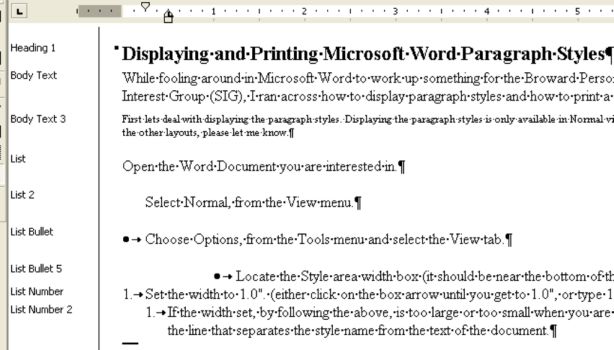
While fooling around in Microsoft Word to work up something for the Broward Personal Computer Association, Inc. (BPCA) Word Processing Special Interest Group (SIG), I ran across how to display paragraph styles and how to print a listing of paragraph styles with their formatting.

Displaying

First lets deal with displaying the paragraph styles. Displaying the paragraph styles is only available in Normal view, as far as I can tell. I did try the other layouts. If anyone knows of a way to do the same in the other layouts, please let me know.

  • Open the Word Document you are interested in.

  • Select Normal, from the View menu.

  • Choose Options, from the Tools menu and select the View tab.

  • Locate the Style area width box (it should be near the bottom of the tab).

  • Set the width to 1.0". (either click on the box arrow until you get to 1.0", or type 1.0" in the box directly).


  • Result Sample


  • If the width set, by following the above, is too large or too small when you are viewing the paragraph styles, it can be adjusted by clicking and dragging the line that separates the style name from the text of the document.
  • Printing

    Sometimes it is useful to print out the paragraph styles and their formatting. I frequently do this when I am trying to set up a template for a project, so that I can consistently apply paragraph formatting throughout the document.

    Typically, I use very few styles but, the styles I do use are used consistently.

    You can print out a list of the styles used in a doument by selecting Styles in the Print What section of the Print Dialog Box:


    Print What

    In my opinion, the use of styles is very important. Styles promote consistency and make documents much easier to edit.

    More on using Styles to follow in future postings.

    Thursday, May 04, 2006

    Organizing Your PC Part 2

    As you know from Organizing Your PC Part 1, I like to have all the screen space possible available. To further do this I utilize the Quick Launch Toolbar, the Taskbar and the Desktop Toolbar. Using these makes everything I need readily available but, does not use up my screen real estate. These areas are shown in the image below:


    I will just give you a brief description of these areas at this time, and will go more in depth about how I got them the way they are in subsequent posts in this series.


    The Quick Launch Toolbar contains all the items I regularly use and need accessible. Not all the icons shown on the Quick Launch Toolbar are standard from Windows, some I have changed to reflect something of significance to me.


    The Taskbar shows me the Windows I currently have open, both minimized and maximized. I don't need that much space and will explain why later on.


    The Desktop Toolbar contains all the items on that are on my desktop , which are hidden from view, as explained in Part 1 of the series. I have it shrunk down as far as it can go but, I can still access everything by clicking on the double right facing chevrons (>>).

    More on each of these in the next installment of the series.


    As an update on my hurricane shutters, they are now telling me that they should be installed June 9th. That should work out well.

    Tuesday, May 02, 2006

    C:\BPCA News and Recovering Missing Toolbars

    First of all the May 2006 edition of C:\BPCA News has been sent out.


    It is also available in PDF format at http://snipurl.com/BPCA_News


    Secondly, as I was writing this entry, the man from the shutter company arrived to make the final measurements for the hurricane shutters I have ordered.


    The day of Hurricane Wilma is when they were first supposed to come out and give me an estimate. Of course, that did not happen. It was November before they could take the initial measurements and then it took until late December to get the architecural approval from the condo association.


    Luckily, the price has stayed the same, but with the shortage of materials and labor, the last time I talked to the company they thought we were looking at sometime in the late fall for installation.


    Hopefully, with the final measurements now taken so that they can be manufactured, my shutters can be installed prior or right at the beginning of this year's hurricane season. Hurray!!!!


    Lastly, my wife called me all in a panic yesterday because she could not see the toolbar in Outlook that has the icons for creating a new message, printing a message, etc.


    She thought she had totally messed up the company computer.


    I calmed her down and told her it is not a big deal, she must have just slipped with the mouse and turned off the toolbar.


    Sure enough, I told her to look at the menu bar, find where it says View, left click on it, then left click on Toolbars, and then make sure that the Standard toolbar has a check next to it. Mission accomplished.


    In most cases, if a toolbar is missing, visiting the View menu and experimenting with turning various toolbars on and off should recover it for you. You might even run across a useful toolbar you didn't even know existed because it wasn't turned on by default.


    Most of the newer software has a lot of optional toolbars, that can be helpful, once you know about them.