Showing posts with label E-Mail. Show all posts
Showing posts with label E-Mail. Show all posts
Tuesday, February 16, 2010


Monday, August 10, 2009
Free Email Tutorials
I was checking for some information today, regarding the Thunderbird email client, and ran across the following site: FreeEmailTutorials.com.
I get frequent questions from members of the computer clubs I am with, as well as from family members and friends, regarding various email clients. I think this site will be very helpful.
In addition to tutorials for specific email clients, such as Outlook 2003, Thunderbird, Windows Live Mail, etc., there is a General Email Tutorials section. This section has tutorials to help with email related issues: "... from troubleshooting and error codes to efficient spam fighting and email management."
Hopefully, this site will be helpful for you too. Check it out and let me know what you think.
Thursday, April 09, 2009
Email Rules and Cartoon
I follow PC Magazine on Twitter, which is where I found a link to the 09Apr09 Article "The 25 Golden Rules of E-Mail".
I tweeted back that this should be required reading. Numbers 6, 7, 8, 9 and 15, address some of my pet peeves regarding email.
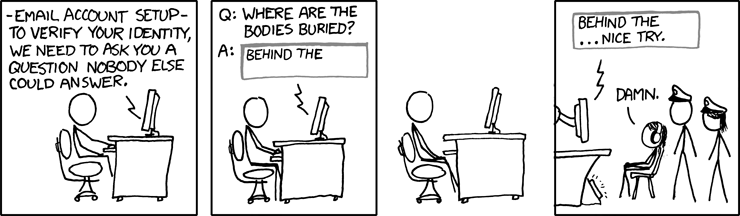
I thought the cartoon below from xkcd.com fit right in.
Thursday, October 12, 2006
Gmail - Plus Addressing
I like that Gmail allows me to use "Plus Addressing", because it makes it easier for me to organize specific incoming email.
According to the Wikipedia Gmail entry, Plus-addressing section, as accessed 12OCT06 :
Gmail also supports "plus-addressing" of e-mails. Messages can be sent to addresses in the form: username+extratext@gmail.com where extratext can be any string. Plus-addressing allows users to sign up for different services with different aliases and then easily filter all e-mails from those services, however, a significant number of services do not support email addresses containing plus signs.
One I use all the time is gmailaddress+bu@gmail.com, the first portion is not my real Gmail address of course. This is for when I am sending myself a backup of information done at work to my Gmail account, and I have a filter set up to automatically label any emails to gmailaddress+bu@gmail.com with a specific label. More about Gmail filters in a post to follow.
I also use a plus addressed Gmail to sign up for things online, then if I have a problem or start receiving a lot of spam I can just set a filter to automatically delete any thing coming in to that address.
In effect plus addressing gives you unlimited disposable email addresses, at least I have not found anywhere that would not accept one.
I am sure there are some more creative ways to use plus addressing, and would like to hear from my readers about their different uses for this. Leave a comment on this or any post to let me know.
Thursday, September 28, 2006
Email - Show File Extensions For Safety
Set Windows to show file extensions to make it easier to determine attachment safety. By default Windows is set to hide file extensions and hackers have used this to hide the real extension of an attachment to look legitimate, as most users do not change the defaults.
An example of goodattachment.txt.exe would show as goodattachment.txt, unless Windows is set to show file extensions and, if opened would run the executable file with probable bad results.
Showing file extensions is a simple process:
- Left click Start.
- Left click Control Panel.
- Double click Folder Options.
- Select the View tab.
- Un-check the "Hide extensions for known file types." box.
- Click OK.
- Close Control Panel.

Sowing file extensions is one of the first things I do when someone asks me to help them with a computer problem and I explain why they should keep this setting. Not only is this a good precaution for email, it helps me understand what the different files are in the folders on the computer that is having problems, as most leave the file extensions hidden and I can not then determine whether a particular file is a data file, an executable, a zip, etc.
Do yourself and your computer repair/consultant personnel a favor and set Windows to show file extensions.
If you know of any other reasons to show file extensions, please leave me a comment.
Tuesday, September 26, 2006
Gmail - Overview
Gmail is a free, web based, email service that I have been using for quite a while now, primarily for backup of important documentation, rather than a normal email service.
In this posting, I want to give an overview of my impressions and usage of Gmail, and later posts will deal with more specifics of how I have Gmail work for me.
All posts related to Gmail will be labeled Gmail for your convenience in locating them.
There are a lot of features in Gmail, but here are the ones most important to the way I use the service, in no particular order:
- Storage - Currently 2,768+ megabytes, and increasing all the time.
- Labels - Labels are used instead of folders, unlike most other email applications.
- Attachment Size - Up to 10 megabytes of attachments are supported.
- Searching - Very easy to find the specific email you are looking for.
Earlier in this posting, I said that I use Gmail more for backup of important documentation; I have several regular email accounts and use the Thunderbird email client for those. The Gmail account, is what I use to send myself a compressed folder containing all data from work each day, as well as backups of newsletters, handouts, etc. from the BPCA and BRCS computer user groups.
This enables me to get the most current information I need, when I need it, from anywhere I can access the internet.
Gmail is by invitation only at this point. Luckily there are ways to obtain an invitation.
- I have some invites available from my account, that will be available to BPCA or BRCS members, as long as the supply lasts, just send me a request.
- Request an invitation from a friend, who has an account with invitations.
- Do a web search for "gmail invitations"; there are many constantly changing listings.
In future posts, I will show you how to use various features of Gmail to organize your correspondence using labels and filters.
Current Gmail users are invited to comment with how they use Gmail to increase their productivity.
Friday, June 30, 2006
Safely Viewing Suspect Email in Outlook Express
After the BPCA General meeting, I was asked how to view an email safely in Outlook Express, to determine if it should be opened. This is due to the topic of internet security at the meeting and the admonition to never open email, unless the sender is known or you had requested the specific email.
The following should give you some information to make the determination:
- Right-click the message, select Properties, and click Details to read the message's header.
- Highlight the email in question and click Message Source to read the message itself in a nonrunning mode (you'll see HTML code, but can scroll down and view the message's text).
In the first case, you should be able to make a decision based on message origin and in the second by a perusal of the actual text.
This only applies to Outlook Express, but other email programs should have similar functions.
I do not use Outlook Express as a general rule, but I did check to make sure the above instructions work.
Note: This posting is a day late due to severe thunderstorms leaving me without computer access. I do apologize but, this will happen from time to time this time of year. Also, with next Tuesday being July 4th, I will probably post either Monday or Wednesday instead.
Tuesday, May 16, 2006
Setting up a Mailto Link
I have been asked how I created the mailto link in my 12MAY06 "Posting Delay" post.
This is really simple to do:
To write an email link just create an anchor link like you would normally, but instead of http:// write mailto: and then your email address.
If you want to send to multiple people, separate the email addresses with a comma:
mailto:email@address1.com,email@address2.com
Use a question mark after the final "To" email address to indicate you want more than just a "To" line. Then you specify what other elements you would like:
- cc - to send a carbon copy
- bcc - to send a blind carbon copy
- subject - for the subject line
You treat the elements as name=value pairs.
To add multiple elements, separate the second and subsequent elements with an ampersand (&).
mailto:toaddress?cc=ccaddress&bcc=bccaddress&subject=Whatever
If I substituted steve@steve.com for toaddress; you@you.com for ccaddress; someone@someone.com for bccaddress and An Email To Steve for Whatever, the result would be a blank email, with the field entries below:
- To: steve@steve.com
- CC: you@you.com
- BCC: someone@someone.com
- Subject: An Email To Steve
Note: You might end up with a lot of SPAM, using the mailto, due to webbot scanning.
Subscribe to:
Posts (Atom)


 Posts

